How to Set Up Interpretation in Zoom and Teams (Step by Step)
Exact menu paths, plan requirements, and limits for language interpretation in Zoom and Microsoft Teams, checked against each vendor's own documentation in October 2026, plus host and interpreter checklists.

Most failed interpretation setups in Zoom and Teams trace back to something nobody checked: a meeting ID, a role, a headset.
This guide covers the built-in features that let a human interpreter speak into a separate audio channel while the original speaker carries on. Every menu name and limit below was checked against Zoom's and Microsoft's own support pages on October 10, 2026. Both vendors change menus and limits without notice, so treat each linked source as the final word.
Two Kinds of Interpretation in Teams, One in Zoom
Zoom's feature is called Language Interpretation, and it is built for human interpreters. Teams has two things that sound alike: language interpretation, the human feature this guide covers, and Interpreter, a separate AI agent that translates speech for participants who hold a Microsoft Copilot license.
Interpreter supports nine languages for speaking and listening: Chinese (Mandarin), English, French, German, Italian, Japanese, Korean, Portuguese, and Spanish. It requires a Microsoft Copilot license (a Teams Rooms Pro license on Teams Rooms devices), includes 20 hours of interpretation per user per month, and is not supported in Teams events. Source: Microsoft Learn, "Manage Interpreter agent for your organization", accessed October 10, 2026
If you need a language outside those nine, or a professional who has studied your material, you need human interpreters, which is what the rest of this guide sets up.
The Setup Flow at a Glance
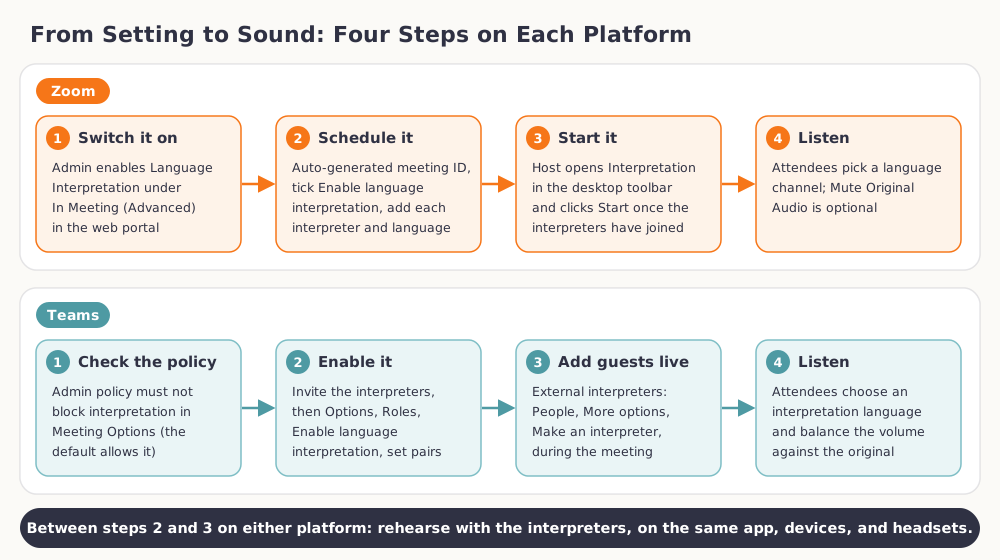
Set Up Language Interpretation in Zoom
What You Need First
Language interpretation works on Pro, Business, Education, and Enterprise accounts, in a scheduled meeting or webinar that uses an automatically generated meeting ID. It cannot be used with a Personal Meeting ID, cannot be added to an instant meeting, and does not work in breakout rooms. Source: Zoom Support, "Using Language Interpretation in your meeting or webinar", accessed October 10, 2026
Steps for Hosts
- Switch the feature on. An account admin signs in to the Zoom web portal, opens Account Management, then Account Settings, then the Meeting tab. Under In Meeting (Advanced), turn on the Language Interpretation toggle. Individual users find the same toggle under Settings, and a grayed-out one is locked at the group or account level.
- Schedule the meeting. In the web portal, choose Meetings, then Schedule a Meeting. Next to Meeting ID, select Generate Automatically. Next to Interpretation, select Enable language interpretation, then enter each interpreter's email address and language. For a webinar, use Webinars, then Schedule a Webinar; Zoom makes each interpreter a panelist automatically.
- Tell interpreters which email to use. A pre-assigned interpreter must be signed in to the account tied to that address. Anyone who joins under a different email is not recognized, although the host can assign them manually.
- Start interpretation. Once the meeting is running and the interpreters have joined, click Interpretation in the desktop toolbar (under More if it is hidden), then click Start. Interpreters get a message naming their assigned language.
- Let attendees choose. Attendees click Interpretation and pick a language. Mute Original Audio leaves only the interpretation. To finish, the host opens Interpretation and clicks End; Manage Language Interpretation changes the setup mid-session.
Once the feature is on, Zoom shows nine default languages: English, Chinese, Japanese, German, French, Russian, Portuguese, Spanish, and Korean. You can add others, but a meeting or webinar can include only five custom languages by default; Zoom Support can raise that to 25. Source: Zoom Support, "Enabling Language Interpretation", accessed October 10, 2026
Zoom Limits to Plan Around
- Mobile and web: Interpretation cannot be started or managed from the mobile or web app. Participants there can only listen, so hosts and interpreters should use the desktop app.
- Audio route: Interpreters and listeners must use computer audio, not dial-in or call-me phone audio.
- Screen sharing: Sharing your screen with computer audio plays that audio to everyone at full volume, so Zoom recommends not sharing audio.
- Recording: Cloud recordings capture the original audio and the translations. Local recordings capture only what the person recording can hear, not multiple channels.
Zoom's own pages disagree on how many interpreters one host can designate:
One Zoom article says a host can designate up to 200 participants as interpreters. A second article on enabling the feature says up to 20. Both show a last-modified date of October 7, 2026. Source: Zoom Support, "Using Language Interpretation in your meeting or webinar" and Zoom Support, "Enabling Language Interpretation"
Plan for the lower number unless you have tested the higher one on your own account.
Set Up Language Interpretation in Microsoft Teams
What You Need First
Microsoft's article says language interpretation can be added to any meeting and names no separate add-on license. The organizer must turn it on and invite your organization's interpreters before the meeting starts. An admin can block it: the meeting policy setting LiveInterpretationEnabledType defaults to DisabledUserOverride, which leaves interpretation off by default but lets organizers enable it for a meeting. Setting it to Disabled removes the option from Meeting Options, as described in Microsoft's Set-CsTeamsMeetingPolicy reference, checked October 10, 2026.
Steps for Organizers
- Create the meeting and invite everyone. Add all attendees in the Invite required attendees field, including your organization's interpreters. They must be listed there to appear in the interpreter search.
- Turn it on. Select Options, and under Roles turn on the Enable language interpretation toggle.
- Assign interpreters and languages. In Search for interpreters, select your interpreters, then use the Language dropdown menus to set each one's spoken and target languages. Interpreters can switch direction between the two. Select Add more interpreters for each extra channel, then Apply.
- Add guest interpreters live. External or guest interpreters cannot be assigned in advance. During the meeting, select People, hover over the person, choose More options, then Make an interpreter, set the languages, and select Confirm. This option appears only in meetings scheduled with interpretation enabled, and Make an attendee reverses it.
- Tell attendees how to listen. Attendees select Choose interpretation language when they join, pick a language under Listen to the meeting in, and use the Balance volume slider. Original audio keeps the floor language. During the meeting, the same panel is under More actions, then Language and speech, then Language interpretation.
Teams Limits to Plan Around
You can add up to 16 different language pairs (French to Spanish counts as one pair) and assign as many interpreters to those pairs as needed. An interpreter cannot be an organizer or co-organizer. Interpretation is supported in regular scheduled meetings, channel meetings, meetings with up to 1,000 participants, and webinars. Source: Microsoft Support, "Use language interpretation in Microsoft Teams meetings", accessed October 10, 2026
- Interpreters are yours to hire. Microsoft does not provide them.
- Desktop only: Interpreters must join on Teams for desktop. Language selection is not available on Teams for web or mobile.
- Breakout rooms: The main meeting can be interpreted, but interpretation stops when breakout rooms start.
- Encryption: Interpretation is not available in end-to-end encrypted meetings.
- Recording: Recordings capture only the main channel, so the interpreter's audio is not on them. Compliance recording is not supported.
- Captions: Captions follow the main speaker, not the interpreter.
- Visibility: Interpreters have attendee permissions, so they can see the chat and the roster. With spatial audio on, listeners hear original and interpreted audio at the same volume, so turn it off.
Town halls are not among the meeting types listed above. Microsoft's town hall guide describes live translated captions instead of interpreter channels:
Attendees with Teams Premium can choose from 10 language translations. Other attendees can choose from up to six. Source: Microsoft Support, "Get started with town hall in Microsoft Teams", accessed October 10, 2026
Host Checklist
- Check the fit. Use a scheduled meeting with an automatic ID in Zoom, and avoid breakout rooms and end-to-end encryption on both platforms.
- Book early, in pairs. Simultaneous interpreting is tiring, so professionals normally work in pairs and swap. Ask how they want to hand over, and test it, because neither help page describes handover.
- Send materials ahead. Share slides, the agenda, speaker notes, and a glossary of names, product terms, and acronyms.
- Rehearse on the real link, with the same app, devices, and headsets as on the day.
- Brief speakers. Ask for a measured pace, a pause after numbers and names, and one voice at a time.
- Explain the channels. Open the meeting with one sentence on how to pick a language.
Interpreter Checklist
- Equipment: Join from the desktop app on a wired headset with a close microphone.
- Early test: Join before the start, confirm you hear the floor audio, and check you are on the right language channel.
- Switching: In Zoom you can broadcast to only one channel at a time and switch by clicking the language. In Teams, select the language you are interpreting into at the bottom of the meeting window.
- Relay: In Zoom, if you do not work from the floor language, use the Listening in menu to follow another interpreter's channel.
- Preparation: Keep the glossary and speaker names open on a second screen.
- Discipline: Mute whenever you are not interpreting, agree turn length and cues with your partner, and treat the chat as confidential, because Teams interpreters can see it.
Common Mistakes
Using a Personal Meeting ID or an instant meeting in Zoom. Neither supports interpretation.
Inviting a guest interpreter in Teams and stopping there. Guests must be made interpreters during the meeting, so decide in advance who will do it.
Letting interpreters join by phone, web, or mobile. Both vendors' instructions assume the desktop app, and Zoom needs computer audio.
Assuming the recording kept the interpretation. Teams never records it, and Zoom does so only in the cloud.
Counting on captions or breakout rooms. Teams captions ignore the interpreter, and neither platform carries interpretation into breakout rooms.
Mixing up the two Teams features. Interpreter and language interpretation use different settings, licenses, and limits.
When an RSI Platform Is the Better Choice
Zoom and Teams are meeting tools with an interpretation feature added. A dedicated remote simultaneous interpreting (RSI) platform is built around the interpreters' work. Move to a purpose-built setup when:
- the event is large, formal, or public, such as a conference or shareholder meeting;
- you need more languages than the built-in limits comfortably allow;
- interpreters need partner consoles, hand-over controls, or a technician monitoring sound;
- you need breakout sessions, end-to-end encryption, or a recording that includes the interpreted audio.
An international standard exists for these platforms, ISO 24019:2022, "Simultaneous interpreting delivery platforms: Requirements and recommendations". Our page on remote interpretation services explains the phone, video, and simultaneous formats, and the page on remote simultaneous interpreting covers how a conference-grade setup works. For in-person events, see simultaneous conference interpreting.
If you are unsure which route fits, BeTranslated arranges interpreters for Zoom, Teams, and dedicated RSI platforms. Book an interpreter with your dates, languages, and platform, and we will tell you whether the built-in feature is enough. The difference between translators and interpreters explains the role itself, and if you are weighing a machine against a person, see AI interpreter or human interpreter.
FAQ
Does Zoom interpretation work on a free account?
No. Zoom's requirements list Pro, Business, Education, and Enterprise accounts, so a free Basic account is not covered. An admin or the user must also enable the setting.
Does Teams interpretation need Teams Premium?
Microsoft's article on language interpretation names no Teams Premium or other add-on requirement. What matters is your admin's meeting policy and the organizer's toggle under Options and Roles. Premium does change other language features, such as translated captions in town halls, so confirm with your Teams admin.
Will the recording include the interpreter's audio?
In Teams, no. Recordings capture only the main channel. In Zoom, cloud recordings capture the original audio and the translations, while local recordings capture only what the person recording can hear.